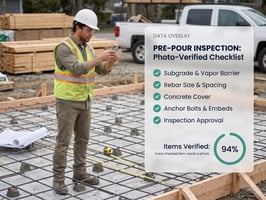
An inspection checklist only protects you if each item has a photo attached at the moment you...
 A construction daily report records what happened on site today: who was there, what work got done, what slowed it down, and what the photos show. Written the same day, in the same format, with photos attached, it is the most useful single document in a dispute over delays, extra work, or workmanship. Written three weeks later from memory, it is close to worthless.
Most contractors know they should keep daily reports. Most do not, or they keep them inconsistently, because the format is tedious and the photos live somewhere else. This guide gives you a copy-ready daily report template, a photo standard that makes the report credible, and an app workflow that takes about five minutes at the end of each day. It pairs with the inspection checklists in the field inspection workflow, which capture photos and checklist answers in one place.
Why Daily Reports Matter More Than They Seem
A daily report is contemporaneous evidence, and courts, insurers, and owners give more weight to records made at the time than to recollections made later.
Daily reports protect you in four situations:
- Delay claims. An owner blames you for a late finish. Your reports show the days lost to weather, late owner decisions, or missing information from others.
- Extra work disputes. The reports show when hidden conditions were found and when the owner was told.
- Workmanship disputes. Photos and notes show what was installed and how, before it was covered.
- Payment disputes. Reports support your billing, your change orders, and your progress percentage.
They also help day to day. A superintendent who writes down tomorrow's plan tonight starts the morning faster. See construction project delay and construction defect claims for how this documentation gets used when things go wrong.
What a Good Daily Report Contains
Cover these categories every day. Short entries are fine, but empty fields are better than missing ones.
- Header: Project, date, report number, prepared by
- Weather: Conditions, temperature, wind, precipitation, and whether weather affected work
- Site access and working hours: Start time, end time, any delays in access
- Crew on site: Who was there, by company and trade, with headcount and hours
- Equipment on site: What ran, what was idle, what arrived or left
- Work performed: What was done, where, by whom
- Materials delivered: What arrived, quantity, condition, and any shortage or damage
- Inspections and tests: Who inspected, what was inspected, pass or fail
- Delays and disruptions: What slowed or stopped work, for how long, and why
- Visitors and meetings: Owner, architect, inspectors, and what was discussed
- Safety: Toolbox talk topic, incidents, near misses, observations
- Direction received and decisions: Verbal or written instructions from anyone, with names
- Issues and RFIs: Questions raised and who they were sent to
- Photos: Attached to the relevant entries
- Plan for tomorrow: Work, crews, deliveries, inspections
Skip the editorializing. Write what happened and let the facts speak.
Copy-Ready Daily Report Template
Header
Project: [Name] | Job #: [###] | Date: [] | Report #: []
Prepared by: [Name, role] | Start time: [] | End time: []
Weather
Conditions: [Clear / Cloudy / Rain / Snow / Wind] | Temp: High [] Low []
Weather impact on work: [None / Partial / Full stoppage] | Hours lost: [__]
Crew on site
|
Company / trade |
Workers |
Hours |
Work area |
|---|---|---|---|
Equipment on site
|
Equipment |
Hours operated |
Idle |
Notes |
|---|---|---|---|
Work performed today
[Location, activity, quantity or percent complete. One line per activity.]
Materials delivered
[Item, quantity, supplier, ticket number, condition, location stored]
Inspections and tests
[Type, inspector, result, corrections required]
Delays and disruptions
[Description, cause, duration, who was notified]
Visitors and meetings
[Name, company, purpose, key points]
Safety
[Toolbox talk topic, incidents or near misses, corrective actions]
Direction received / decisions made
[Who said what, when, and how it was communicated]
Issues and RFIs
[Question, directed to, date submitted, response needed by]
Photos
[Number of photos, filed by area. Each photo labeled with location and subject.]
Plan for tomorrow
[Crews, work areas, deliveries, inspections, constraints]
Signed: [Name] | Reviewed: [Name]
The Photo Standard That Makes a Report Credible
A photo supports the report only if it can be located, dated, and understood. Set a standard and train every foreman to follow it.
Every photo should:
- Carry an automatic timestamp and location stamp
- Show enough context to identify the area, with a wide shot and a close-up
- Include a scale reference when documenting a measurement or defect
- Be labeled with the area, such as "Level 2, grid C-4, east wall"
- Be taken in the app, so it attaches to the job record automatically
Daily minimum photo set:
- [ ] Wide shot of each active work area at start of day
- [ ] Progress on each major activity
- [ ] Any hidden condition or unexpected discovery
- [ ] Deliveries as received, including damage
- [ ] Any delay or disruption: standing water, blocked access, waiting crews
- [ ] Work about to be covered up, shot before it is covered
- [ ] Wide shot of each area at end of day
- [ ] Safety concerns and corrections
Do not do this: Shoot 200 photos and dump them in one folder named "Tuesday." Fewer, labeled photos beat a pile that nobody can search.
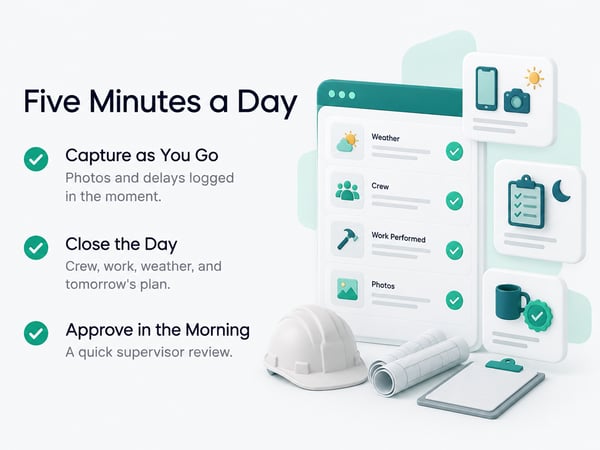
App Workflow: Five Minutes at the End of the Day
The daily report works when it is built into the day, not added after it. Use a mobile app so entries and photos happen as work happens.
During the day (as things occur):
- Take photos in the app, tagged to the job and area
- Add a one-line note to any photo that needs it
- Log delays and visitors right when they happen, with the time
End of day (about five minutes):
- Open the day's report in the app
- Confirm crew and hours, pulled from time records where possible
- Review the work performed entries and add anything missing
- Confirm weather and delays
- Confirm photos are attached to the right entries
- Write tomorrow's plan
- Submit for review
Next morning (supervisor, two minutes):
- Review, comment if needed, and approve
When crew hours pull directly from GPS-verified time records, you do not retype them, and the report matches payroll. See GPS time tracking for how location-verified clock-ins create that record, and construction time tracking software for platform setup.
Tie the Report to Time Records
The crew section of the daily report and the time tracking system should agree. When they do not, you have a documentation problem.
Cross-check:
- Headcount in the report matches clocked-in workers
- Hours in the report match verified time records
- Subcontractor workers listed match who was actually on site
- Work areas match the cost codes used at clock-in
When the two systems disagree, find out why. A worker listed in the report but not clocked in is either a missed clock-in or a report error. A clocked-in worker missing from the report suggests the report was filled out from memory.
Verified time plus a same-day report gives you a record that holds up. For crew setup, see time tracking for construction workers, and for comparing platforms, see top 5 time tracking apps, top 5 BusyBusy alternatives, and TaskTag vs. BusyBusy.
Writing Entries That Hold Up

Good entries are specific, factual, and free of blame or speculation.
|
Weak |
Strong |
|---|---|
|
"Slow day, crew was late." |
"Framing crew arrived 9:15 AM. Gate locked until 9:10 AM. Superintendent called owner's rep at 7:05 AM. Lost 1.25 hours for crew of 6." |
|
"Rain delayed us." |
"Rain 6:30 to 11:00 AM. Excavation partially flooded, 0.5 ft standing water at grid B. Dewatering required. Work resumed 12:30 PM." |
|
"Owner asked for a change." |
"At 2:10 PM, owner's rep J. Smith verbally directed relocation of the island outlet 18 in. east. Told him a change order is required. Photo attached." |
|
"Found some bad wood." |
"Demo exposed rotted subfloor, approx. 24 sq ft at northeast corner. Photos 14 through 17. Owner notified by text at 10:40 AM." |
Rules for entries:
- Record who, what, where, when, how long
- Record direction received and who gave it
- Record notification of problems and to whom
- State facts, not opinions or blame
- Do not alter or backdate entries. Add a correction instead, labeled as such
Using Daily Reports to Defend and Bill Extra Work
Daily reports are the paper trail behind change orders. When extra work happens, the report should show discovery, notice, direction, and the time spent.
For each extra-work event, record:
- The condition found and when
- Who was notified, how, and when
- Who authorized the work, and how
- Labor hours and materials used, under a separate cost code
- Photos before, during, and after
This supports billing and shows that you followed the contract's notice requirements. The notice and approval process should be spelled out in your agreement. See how to negotiate a construction contract for the clauses that matter. Reports also support progress billing and profit tracking. See construction WIP report and contractor profit and loss statement.
Handling Subcontractor Reporting
Decide how subs contribute to the daily report and put it in the subcontract.
Common approaches:
- GC writes the report and pulls sub headcount and hours from the shared time system
- Subs submit a short daily entry covering crew, work done, and issues
- Subs use the same app with access limited to their own scope
Require subs to report delays, safety incidents, and changes in crew size the same day. If a sub fails to follow the reporting rules, document each occurrence. See how to fire a subcontractor for the paper trail to build before taking action.
Storage, Retention, and Access
Daily reports are only useful if you can find them years later.
- Store reports and photos by project and date in one system
- Keep a backup outside the app, such as a periodic PDF export
- Retain records for your longest likely claim period, which depends on your state and contract. Ask your attorney for your retention period
- Restrict edit rights and keep an edit log
- Include the reports in your closeout package
See construction project closeout for what to archive, and construction retainage where open documentation affects payment release.
Common Mistakes
Writing from memory days later. The report loses its main advantage. Fix: complete it the same day.
Too much narrative, too little fact. Long paragraphs hide the useful details. Fix: use the template with short entries.
No weather detail. Weather days are often the key to a delay claim. Fix: record conditions and hours lost every day.
Photos without labels. An unlabeled photo is hard to use. Fix: label at capture.
Crew count guesses. Headcount from memory contradicts payroll. Fix: pull from time records.
Skipping slow or quiet days. Gaps look suspicious later. Fix: report every working day, even a one-line "no work, site secured" entry.
Recording opinions. "The owner is being unreasonable" does not belong in the record. Fix: stick to facts.
For documenting crews who work across scattered or outdoor sites, see time tracking for landscapers.
One-Page Daily Report Checklist
During the day
- [ ] Photos taken in the app, tagged to job and area
- [ ] Delays logged with time and cause
- [ ] Visitors and direction received noted with names
- [ ] Hidden conditions photographed and reported to the owner
End of day
- [ ] Weather and hours lost recorded
- [ ] Crew and hours confirmed against time records
- [ ] Equipment on site listed
- [ ] Work performed entered by area
- [ ] Deliveries and inspections logged
- [ ] Safety entry completed
- [ ] RFIs and issues noted
- [ ] Photos attached and labeled
- [ ] Plan for tomorrow written
- [ ] Report submitted
Next morning
- [ ] Supervisor review and approval
Related Resources
Inspection and Documentation:
- Field Inspection Workflow: checklists, photos, and reports in one workflow
TaskTag Features:
- GPS Time Tracking for Construction: verified crew hours for your report
- Construction Time Tracking Software: platform overview
- Time Tracking for Construction Workers: crew clock-in guide
- Top 5 Time Tracking Apps: platform comparison
- Top 5 BusyBusy Alternatives: alternatives guide
- TaskTag vs. BusyBusy: feature comparison
- Time Tracking for Landscapers: tracking for mobile crews
Related Blog Posts:
- Construction Project Delay: delay claims and documentation
- Construction Defect Claims: records in workmanship disputes
- How to Negotiate a Construction Contract: notice and change order clauses
- Construction WIP Report: progress and profitability
- Contractor Profit and Loss Statement: financial reporting
- How to Fire a Subcontractor: documenting sub performance
- Construction Project Closeout: archiving project records
- Construction Retainage: documentation and payment release