
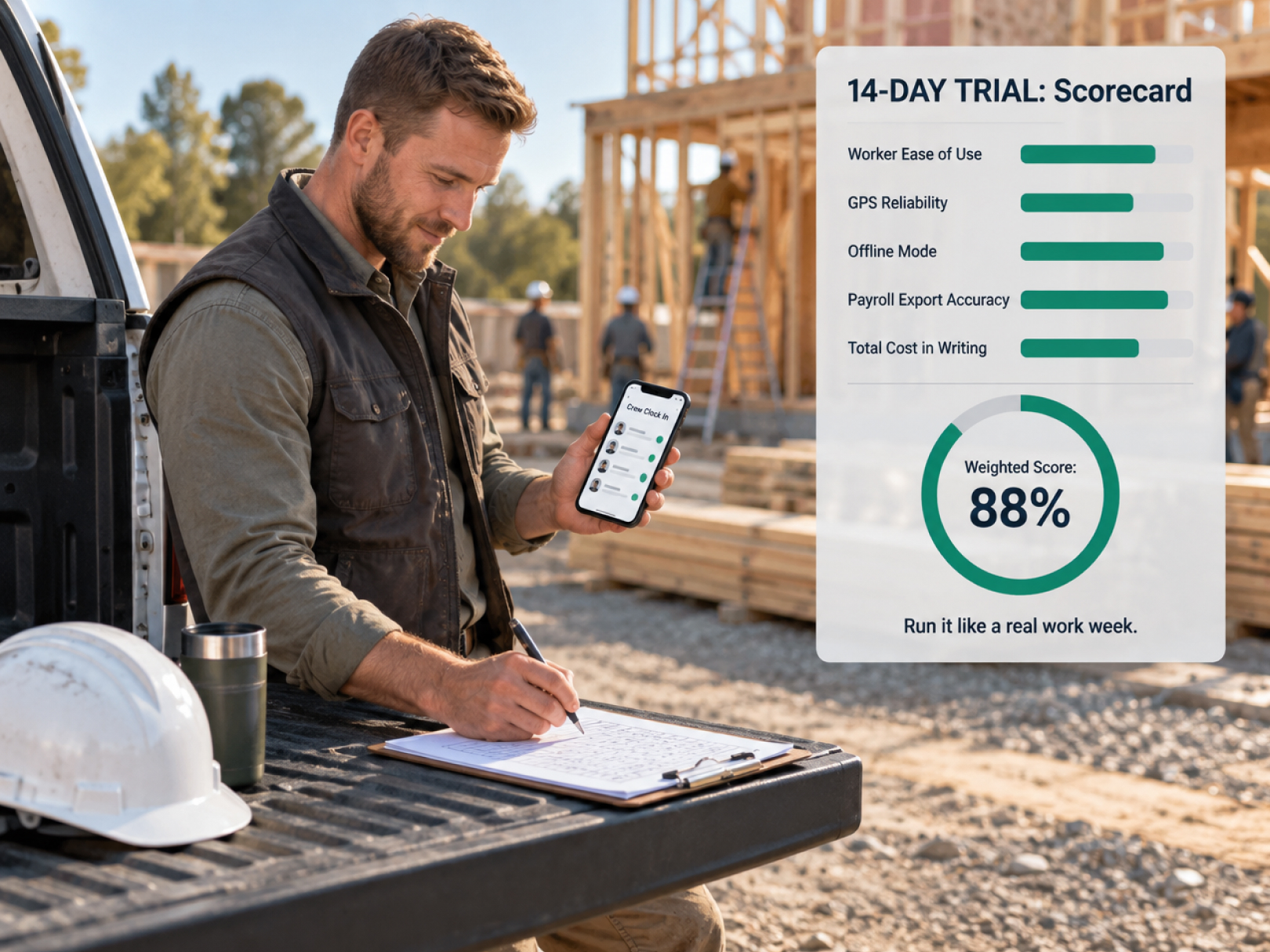
 A 14-day trial only tells you something if you run it like a real work week, with real crews, real jobs, and a real payroll export. Most trials fail for a simple reason: someone clicks around the demo project for an afternoon, likes the interface, and signs up. The problems show up three weeks later, on the first live payroll.
This guide gives you a day-by-day trial script and a scoring sheet you can use on any construction time tracking platform you are comparing against BusyBusy or any other incumbent. It works whether you are replacing BusyBusy, replacing paper, or choosing a first system. For a shortlist of platforms to test, start with the top 5 BusyBusy alternatives and the direct TaskTag vs. BusyBusy comparison.
Before Day 1: Define What You Are Testing
Decide what "good" looks like before the trial starts, or every platform will look fine.
Write down your answers to these questions:
- What problem are we solving? Payroll re-entry, buddy punching, late job cost data, disputes, or something else?
- What must the platform do? List your must-haves, such as GPS clock-in, cost codes, a specific payroll integration, or offline mode.
- What would make us walk away? Examples: no export to our payroll system, no offline mode, workers cannot figure it out.
- Who is on the test team? One office admin, one superintendent, and at least three field workers on one real job.
- What does it cost? Get total pricing for your user count in writing before the trial starts.
Gather your inputs:
- One active project with address, cost codes, and budget
- A list of 5 to 10 workers with names and IDs matching payroll
- A sample of last month's payroll export for comparison
- Your payroll system's import template
Keep your current system running during the trial so you can compare results. Do not tell the vendor your timeline until you have finished.
Days 1 and 2: Setup and First Impressions
Setup is the first honest test. If the vendor cannot get you running quickly, that is information.
Day 1: Account and project
- [ ] Create the account without vendor help, and time how long it takes
- [ ] Set pay period, overtime rules, and time zone
- [ ] Create your test project with the real address
- [ ] Load your real cost codes
- [ ] Draw the geofence and check it on the map
- [ ] Note anything confusing, with screenshots
Day 2: People and permissions
- [ ] Add the test workers using payroll IDs
- [ ] Add the supervisor and set permissions
- [ ] Send login invitations and see how workers receive them
- [ ] Ask one worker to install the app with no coaching, and note where they get stuck
Score setup (1 to 5): How fast? How clear? How much support did you need?
If you need a call with support just to create a project, expect that every future change will need one too. See construction time tracking software for what a normal setup involves.
Days 3 and 4: Field Clock-In Under Real Conditions
Test on the actual job site, with actual workers, in the actual conditions where you will use it.
Day 3: Supervised first clock-in
- [ ] Be on site for the start of shift
- [ ] Each worker clocks in with the cost code selected
- [ ] Check the dashboard: do all clock-ins appear with correct location?
- [ ] Note any worker who struggled
Day 4: Stress the edges
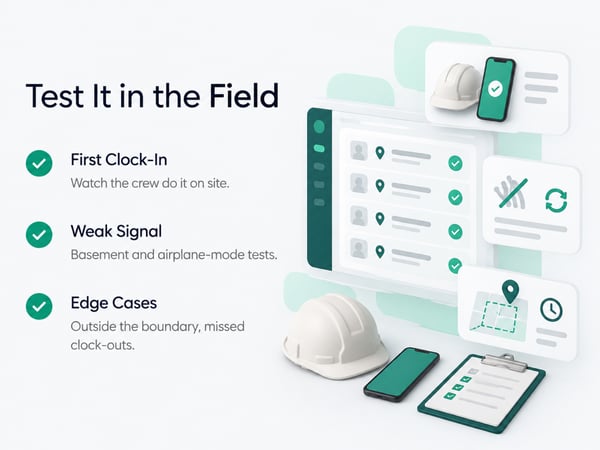
- [ ] Test a clock-in inside a building, basement, or other weak-signal area
- [ ] Test offline mode: put a phone in airplane mode, clock in, then reconnect. Does the record sync with the right timestamp?
- [ ] Test clocking in from outside the geofence. What does the app do? What does the supervisor see?
- [ ] Test foreman clock-in for a worker without a smartphone
- [ ] Test switching projects or cost codes mid-shift
- [ ] Test a worker forgetting to clock out
Score (1 to 5): Reliability, speed for the worker, clarity of the location data.
How location accuracy works, and what normal drift looks like, is covered in detail in our guide to GPS time tracking. A platform that handles the edge cases gracefully will save you grief later.
Days 5 and 6: Supervisor and Office Workflow
The office experience decides whether your admin saves time or loses it.
Day 5: Daily review
- [ ] Review the live crew dashboard: can you see who is where right now?
- [ ] Open a flagged record. Do you see coordinates, accuracy radius, and a clear reason for the flag?
- [ ] Correct a time record. Does it require a note? Is there an edit log?
- [ ] Add a missing clock-in for a worker who forgot
- [ ] Review overtime alerts
Day 6: Weekly workflow
- [ ] Approve a full day of time records
- [ ] Try bulk approval or review tools
- [ ] Generate hours by worker, by job, and by cost code
- [ ] Check whether reports update in real time or need a refresh
Score (1 to 5): Speed, clarity, audit trail, and how many clicks common tasks take.
Days 7 and 8: The Payroll Test
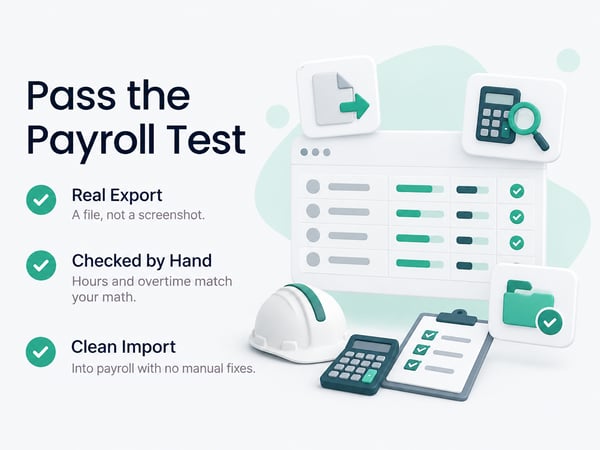
This is the test that decides most switches. Do not skip it, and do not accept a screenshot in place of a real export.
Day 7: Export
- [ ] Run the payroll export for the test days
- [ ] Open the file. Are names, IDs, hours, and overtime correct?
- [ ] Compare against your manual calculation for the same hours
- [ ] Check whether job and cost code data come through
Day 8: Import
- [ ] Import the file into your payroll system as a test, without processing payroll
- [ ] Note every error, mismatch, or manual fix needed
- [ ] Test an employee ID mismatch and see how it is handled
- [ ] If you work on prevailing wage projects, test the certified payroll output
- [ ] Test the accounting integration, such as QuickBooks, if you use one
Score (1 to 5): Accuracy, time to complete, number of manual fixes.
Common failures: wrong overtime calculation, IDs that do not match, a format your payroll system rejects, and missing cost codes. A platform that fails here probably will not save the admin time you are counting on. See contractor profit and loss statement for how clean labor data flows into your financials.
Days 9 and 10: Job Costing and Reporting
Time tracking earns its keep when the data turns into decisions, not just payroll.
Day 9: Job costing
- [ ] Load a budget by cost code for the test project
- [ ] Compare actual hours against budget for the days tracked
- [ ] Check whether the comparison updates automatically
- [ ] Look for alerts when a cost code approaches its budget
- [ ] Check whether labor cost uses your real loaded rates
Day 10: Reports
- [ ] Pull reports you actually use: hours by job, by cost code, by worker, overtime
- [ ] Ask what requires an export to a spreadsheet
- [ ] Try to build one custom view you need
- [ ] Check what a project manager or owner would see at a glance
Score (1 to 5): Depth, speed, and how much Excel it replaces.
Real-time job costing is where many tools differ most. See construction WIP report for what you want your data to support, and how to win construction bids for how historical labor data improves estimates.
Days 11 and 12: Support, Subs, and Extras
Test how the vendor behaves when something goes wrong, because eventually something will.
Day 11: Support
- [ ] Submit a real question through the normal support channel
- [ ] Note response time and whether the answer was useful
- [ ] Ask a harder question: how to handle a mid-project cost code change
- [ ] Check help documentation and training resources
Day 12: Subcontractors and extras
- [ ] Add a subcontractor user with restricted access. Can they see only their job?
- [ ] Test any features you listed as must-haves: photos, checklists, equipment tracking, or others
- [ ] Ask about data export if you cancel
- [ ] Review the contract terms, renewal rules, and price changes
Score (1 to 5): Support quality, flexibility with subs, and clarity of terms.
If subcontractors matter to you, see how to fire a subcontractor for the documentation habits that make sub time records valuable.
Days 13 and 14: Compare and Decide
Put the numbers side by side and make the decision on evidence, not memory.
Day 13: Debrief
- [ ] Meet with the admin, superintendent, and field workers
- [ ] Ask each: what was easy, what was annoying, what would you change?
- [ ] Compare trial hours against your current system's hours for the same days
- [ ] Note any discrepancy and its cause
Day 14: Decide
- [ ] Total the scorecard
- [ ] Check deal-breakers
- [ ] Confirm pricing in writing, including year two
- [ ] Decide: sign, extend the trial, or walk away
If two platforms are close, extend both trials and run them in parallel on separate crews for one more week.
Copy-Ready Trial Scorecard
Score each category 1 (poor) to 5 (excellent). Weight the categories that matter most to you.
|
Category |
Weight |
Platform A |
Platform B |
Platform C |
|---|---|---|---|---|
|
Setup speed and clarity |
1x |
|||
|
Worker ease of use |
3x |
|||
|
GPS reliability and edge cases |
3x |
|||
|
Offline mode |
2x |
|||
|
Supervisor dashboard and corrections |
2x |
|||
|
Payroll export accuracy |
3x |
|||
|
Payroll and accounting integration |
3x |
|||
|
Job costing depth |
2x |
|||
|
Reporting |
2x |
|||
|
Subcontractor handling |
1x |
|||
|
Support quality |
2x |
|||
|
Total cost (year one and two) |
3x |
|||
|
Weighted total |
Deal-breakers (any "no" eliminates the platform):
- [ ] Exports to our payroll system correctly
- [ ] Works offline
- [ ] Workers can use it without constant help
- [ ] Total cost is within budget in writing
Red Flags During a Trial
Watch for these. Any one deserves a direct question to the vendor.
- The vendor insists on doing all the setup for you, and you cannot repeat it yourself
- The demo account looks very different from the trial account
- Payroll export "works" only after manual cleanup
- Offline clock-ins disappear or get the wrong time
- Location flags give no accuracy information
- Reports require exporting to a spreadsheet to be useful
- Features you need are "on the roadmap"
- Pricing is vague, or higher at renewal than at signup
- Data export after cancellation is unclear
- Support answers are slow or generic during the trial, when they are trying hardest
Getting Your Crew On Board During a Trial
A trial with an unwilling crew produces misleading results. Brief them first.
- Explain it is a test and their feedback counts
- Tell them what the system records and what it does not. See time tracking for construction workers for crew setup and rollout guidance
- Keep it to one job and a small group
- Ask for honest complaints, then act on them
- Keep paychecks accurate during the trial by running the old system alongside
Crew buy-in matters as much as features. A tool the crew likes and uses correctly beats a more powerful one they avoid.
After the Trial: Rollout Plan
If you choose a platform, move in stages.
- [ ] Roll out to one or two additional jobs first
- [ ] Retire the old system only after one clean payroll cycle
- [ ] Keep access to the old system for reference for 30 days
- [ ] Review results at 60 days: payroll admin time, job cost accuracy, overtime disputes, and crew feedback
- [ ] Use the data to improve estimates and cash planning. See construction cash flow management
For platform comparisons across the category, see top 5 time tracking apps. If your crews work outdoors or across scattered sites, see time tracking for landscapers. For contract language that makes time records and documentation enforceable, see how to negotiate a construction contract. Verified time records also support you in construction project delay and construction defect claims situations.
Related Resources
Comparison Pages:
- Top 5 BusyBusy Alternatives: platform comparison and rankings
- TaskTag vs. BusyBusy: direct feature comparison
TaskTag Features:
- GPS Time Tracking for Construction: verified clock-in and geofencing
- Construction Time Tracking Software: platform overview and setup
- Time Tracking for Construction Workers: crew clock-in guide
- Top 5 Time Tracking Apps: broader platform comparison
- Time Tracking for Landscapers: tracking for mobile crews
Related Blog Posts:
- Contractor Profit and Loss Statement: labor cost in financial reporting
- Construction WIP Report: job cost and profitability
- How to Win Construction Bids: estimating with labor history
- Construction Cash Flow Management: payroll and cash planning
- How to Fire a Subcontractor: documenting sub performance
- How to Negotiate a Construction Contract: documentation clauses
- Construction Project Delay: time records in delay claims
- Construction Defect Claims: time records in disputes