
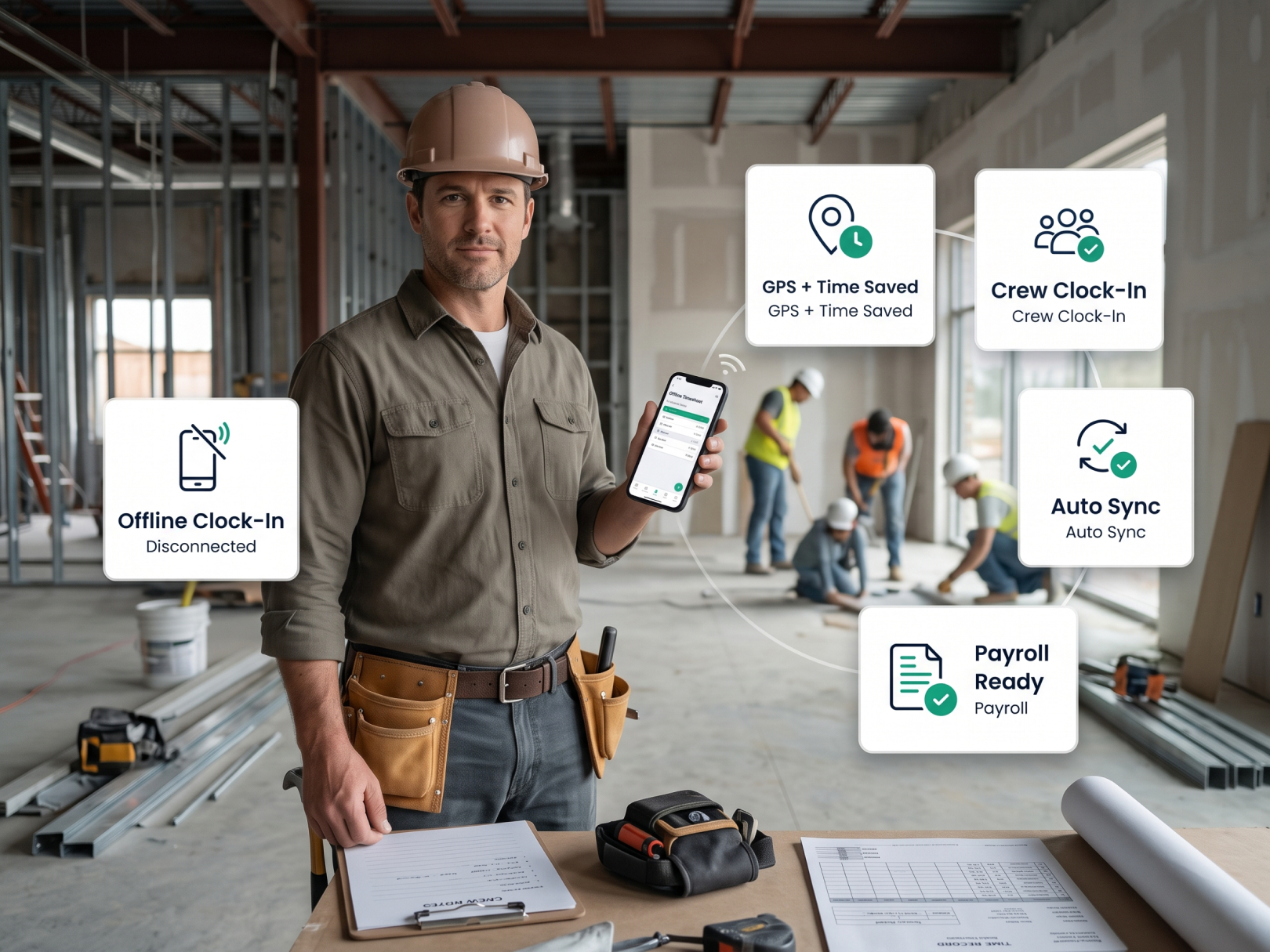
 Most construction timesheet apps fail in the field within 30 days — not because the software is broken, but because it was built for an office worker, not a framing crew in August. The demo looked clean. The UI was modern. The sales rep showed the payroll export and the dashboard. Then the foreman tried to clock in with work gloves on, the site had no cell signal, and three workers shared a single device because nobody mentioned device requirements. By week three, half the crew was back to paper and the other half was clocking in from the parking lot.
Choosing a construction timesheet app for field crews requires a different evaluation framework than choosing any other category of business software. The primary users — workers, foremen, superintendents — are not behind desks. They're on roofs, in trenches, operating equipment, and moving fast. Every tap that isn't necessary is a tap that won't happen.
This guide covers the 7 features that actually separate construction-ready timesheet apps from office software dressed up for the field, with an evaluation checklist at the end for scoring any app before you commit.
Why Most Construction Timesheet Apps Fail in the Field
The fundamental problem: most timesheet apps are designed for the person reviewing time records, not the person creating them. The PM and payroll admin who see a clean dashboard didn't clock in from a job site at 6:15am with wet hands. The workers who did are the ones whose friction determines whether the app gets used.
The three failure modes:
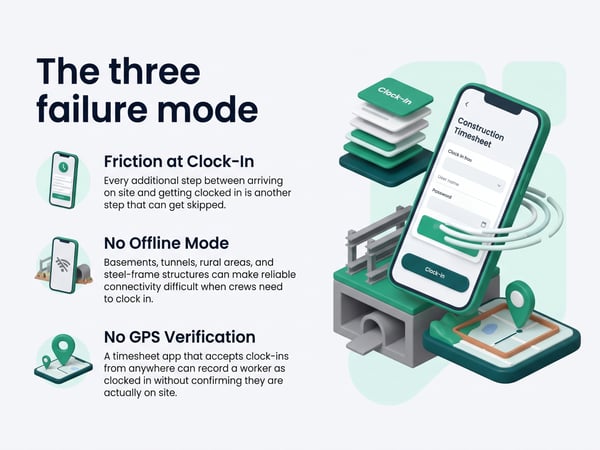
Friction at clock-in. Every additional step between arriving on site and being clocked in is a step that gets skipped. An app that requires opening, logging in, navigating to the correct project, selecting a task, and then tapping clock-in is an app that gets used when the foreman is watching and ignored otherwise. An app that opens directly to clock-in, auto-populates the project from GPS location, and completes in two taps gets used.
No offline mode. Construction sites — particularly in basements, tunnels, rural areas, and steel-frame buildings during structure — have unreliable or absent cell coverage. An app that requires a live connection to record time loses data constantly on real job sites. Workers clock out, the sync fails, and the record is gone. Payroll reconciliation becomes a weekly investigation.
No GPS verification. A timesheet app that accepts clock-ins from anywhere records that a worker was clocked in. A GPS-verified app records where they were. The difference is the difference between a promise and evidence. Workers clock in from home, from vehicles en route to the site, from lunch. Without location verification, the time record is as reliable as a paper timesheet signed by the worker — which is to say, not very.
Feature 1: GPS Verification at Every Clock Event
GPS verification is the single feature that separates a construction timesheet app from a generic time tracking app. Every clock-in and clock-out should capture GPS coordinates at the moment of the event. Not an estimated location, not a cell tower triangulation — GPS coordinates from the device's location services at the second the clock button is tapped.
What GPS verification does:
- Creates a location record tied to every time entry — who was where and when
- Eliminates off-site clock-ins — workers clocking in from home, vehicles, or coffee shops show up immediately in the GPS record
- Provides defensible records for workers' comp claims, certified payroll audits, and T&M billing disputes
- Lets the superintendent verify in real time that the crew is actually on site
What to look for:
- GPS captured at clock-in AND clock-out — not just one direction
- GPS coordinates visible to the supervisor in the time record — not buried in an export
- Real-time map view showing where clocked-in workers are currently located
- GPS records stored permanently with the time entry — not discarded after payroll processing
Red flag: Apps that market "location tracking" but actually use cell tower triangulation instead of device GPS — accuracy difference can be hundreds of meters, which makes the record useless for site boundary verification.
The GPS time tracking feature page covers how GPS verification works at the device level and what the superintendent sees in real time.
Feature 2: Geofencing with Clock-In Restriction
Geofencing is GPS verification's enforcement layer. Where GPS verification records where a worker clocked in, geofencing prevents the clock-in from completing if the worker isn't inside the site boundary. No flagging for review later — blocked at the source.
How geofencing works in construction:
The superintendent or PM draws a boundary around the job site in the app — a polygon around the building footprint, a radius from the site center, or multiple zones for large sites. When a worker tries to clock in, the app checks their GPS location against the boundary. Inside: clock-in completes. Outside: clock-in is blocked with a message telling the worker to move to the site.
Construction-specific geofencing requirements:
- Multi-zone support — a large commercial site may have multiple buildings, a staging area, and an equipment yard that all need separate zones within the same project
- Adjustable radius — a small residential lot needs a tight boundary; a large industrial site needs a much wider perimeter
- Override capability for superintendents — the ability to manually clock in a worker who is legitimately on site but whose GPS is misbehaving
- No-clock-in-outside-boundary for workers, clock-in-anywhere for supervisors reviewing the whole crew
Red flag: Apps that offer geofencing only as a "notification" rather than a hard block — the worker can still clock in, and the supervisor just gets an alert they may or may not review.
Feature 3: Offline Mode with Automatic Sync
An offline mode isn't a nice-to-have for construction — it's a requirement. Basements, underground utilities, rural sites, steel-frame buildings mid-construction, tunnels, and areas with overloaded cell towers all produce the same result: no signal. A construction time clock app that requires connectivity to record time will lose data every week on real job sites.
What offline mode must do:
- Record clock-in, clock-out, cost code selection, and GPS coordinates locally on the device with no connection required
- Store the offline data indefinitely until connection is restored — not just for a few hours
- Sync automatically when the device reconnects without requiring the worker to do anything
- Resolve conflicts correctly when the same worker's records appear from multiple devices
What to verify before committing:
Put the app in airplane mode. Clock in. Change cost codes. Clock out. Turn airplane mode off. Verify the complete record — GPS coordinates, timestamps, cost codes — synced correctly and appears in the supervisor dashboard. If any data is missing or timestamps shifted during sync, the offline mode isn't production-ready for construction.
Red flag: "Offline mode" that only works for a few hours, requires manual sync initiation, or drops GPS coordinates when syncing.
Feature 4: Cost Code Attribution at Clock-In
A construction timesheet that records hours without recording what work those hours went toward is a payroll tool, not a job cost tool. Cost code attribution at clock-in turns every time entry into a job cost data point — labor tracked to scope as it happens, not reconstructed from memory at the end of the week.
How cost code attribution works:
When a worker clocks in, they select the cost code for the work they're starting: concrete formwork, framing, electrical rough-in, site cleanup. The time entry records both the hours and the code. At the end of the day, the superintendent reviews: all 8 hours attributed to specific scopes, not sitting in "general labor."
Why it matters:
- Job cost reports show actual labor by scope in real time — not estimated
- Budget variance is visible while there's still time to respond — not in a report three weeks later
- Estimating future jobs improves because historical labor by cost code is available
- Subcontractor T&M billing can be verified against cost code — did the hours billed match the scope being worked?
Construction-specific requirements:
- Cost codes configured per project — not a global list of all codes for all jobs
- Workers see only the codes active for their current project — no scrolling through 400 irrelevant codes
- Foreman can assign cost codes to crew members at the morning huddle — workers don't need to self-select if the foreman is managing the crew
- Cost code changes mid-day — worker switches from one scope to another, both periods tracked separately
Red flag: Apps where cost codes are an optional add-on or a post-hoc edit rather than a required selection at clock-in. Optional fields don't get filled in.
Feature 5: Foreman Clock-In for Crews Without Smartphones
Not every construction worker has a smartphone. Not every worker who has one wants to use a personal device for work time tracking. A construction timesheet app that requires every individual worker to have their own device leaves a company unable to fully deploy the system — and falls back to paper for the workers without devices.
Foreman clock-in (also called crew clock-in or bulk clock-in):
The foreman uses a single device to clock in the entire crew at once. Workers are listed under the foreman's job assignment; the foreman selects the workers who arrived, selects the cost code, and clocks the group in. The GPS location of the foreman's device is recorded for all entries.
What to verify:
- The foreman can clock in multiple workers in a single action — not one at a time
- The foreman's GPS location is attached to the entries — not blank
- Workers clocked in by the foreman can still be individually clocked out at different times if they leave at different points
- The superintendent can see which workers were clocked in by a foreman vs. self-clocked
When foreman clock-in is especially critical:
- Older crews with low smartphone adoption
- Projects with prevailing wage requirements where every worker's hours must be tracked regardless of their device situation
- Subcontractors whose workers don't use company-provided devices
Red flag: Apps where foreman clock-in produces records without GPS coordinates, or where individual clock-out timestamps can't be recorded separately after a group clock-in.
Feature 6: Payroll Export Without Manual Entry
The most common hidden cost of a construction timesheet app isn't the monthly subscription — it's the hours someone spends every week reconciling time records and re-entering data into payroll. An app that doesn't export directly to the payroll system in use doesn't eliminate the manual step, it just moves it.
What a real payroll export looks like:
- Exports to the payroll system in that system's native format — not a generic CSV that requires reformatting
- Includes regular hours, overtime hours, and double-time hours calculated correctly per the applicable overtime rules
- Exports by worker, by pay period, by project, or by cost code depending on what the payroll system needs
- Works with multiple payroll systems — ADP, Paychex, QuickBooks Payroll, Gusto — not locked to one
Certified payroll export:
For prevailing wage projects, the export must generate a WH-347 certified payroll report or a state equivalent — not just a raw time export that the payroll processor has to reformat. This is a hard requirement for Davis-Bacon and state prevailing wage compliance.
What to verify before committing:
Request a test export in the exact format your payroll system accepts. Don't accept "we integrate with QuickBooks" without verifying that the export format is what QuickBooks Payroll actually imports — the distinction between a QuickBooks accounting integration and a QuickBooks Payroll integration is significant.
Red flag: "Export to CSV" as the only export option, or exports that require manual reformatting before the payroll system accepts them. Manual reformatting is the exact problem you were solving.
Feature 7: Real-Time Supervisor Dashboard
Payroll knows who worked last week. The superintendent needs to know who is on site right now. A construction crew time tracking dashboard that shows real-time clock status — who's clocked in, from where, on what cost code — gives the superintendent information that changes decisions today, not information that confirms what happened last Friday.
What the real-time dashboard must show:
- All workers currently clocked in — by name, by project, by cost code
- GPS location of each clocked-in worker — on a map view, not just coordinates in a table
- Workers who should be clocked in but aren't — by name, flagged automatically
- Clock-in time and total hours accumulated for the current shift
- Any GPS anomalies — workers clocked in outside the expected site area
Cross-project view:
For a company with multiple active projects, the superintendent or PM needs to see all crews across all active sites in one view. Not a separate dashboard per job — one view that shows the company's entire field labor deployment at this moment.
Alert and notification capability:
- Alert when a worker hasn't clocked in by expected start time
- Alert when a worker's GPS shows they're outside the geofence at clock-in
- Alert when a worker's shift exceeds the overtime threshold
- Daily summary report pushed to the superintendent automatically — not something they have to go log in to find
Red flag: Apps where the "dashboard" is a static report that refreshes every 15–30 minutes. Real-time means real-time — superintendent opens the app and sees the current state of the crew, not the state from 20 minutes ago.
Bonus Feature: Certified Payroll and Prevailing Wage Support
For any contractor working on public projects — federal, state, or municipal — certified payroll compliance isn't optional. Davis-Bacon Act and state prevailing wage laws require weekly certified payroll documentation showing each worker's name, classification, hours per day, rate of pay, and deductions. A construction timesheet app that doesn't support certified payroll forces the contractor to maintain a parallel tracking system for prevailing wage jobs.
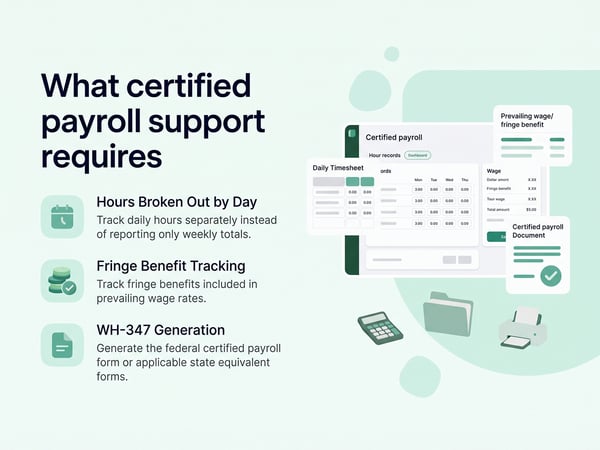
What certified payroll support requires:
- Worker classification tracked per project — the same worker may be a laborer on one job and a carpenter on another
- Hours broken out by day — not just weekly totals
- Fringe benefit tracking — prevailing wage rates include fringe benefits; the app must track fringe payments or benefits-in-lieu
- WH-347 generation — the federal certified payroll form, or state equivalent forms
- Digital submission support — many jurisdictions now require electronic certified payroll submission through LCPtracker or similar systems
This is a specialty feature — not every construction timesheet app supports it. If certified payroll is a current or likely future requirement, verify support before committing.
App Evaluation Checklist: Score Any Construction Timesheet App
Use this checklist before committing to any construction time tracking app. Score each item 0 (not present), 1 (partially present), or 2 (fully present). Maximum score: 30.
GPS and Location
- [ ] GPS coordinates captured at clock-in (0/1/2)
- [ ] GPS coordinates captured at clock-out (0/1/2)
- [ ] Real-time map view of clocked-in crew (0/1/2)
- [ ] Geofencing with hard clock-in block outside boundary (0/1/2)
- [ ] Multi-zone geofencing for large or complex sites (0/1/2)
Offline Capability
- [ ] Clock-in and clock-out work with no cell signal (0/1/2)
- [ ] GPS captured offline and synced with timestamp intact (0/1/2)
- [ ] Sync is automatic on reconnect — no manual action required (0/1/2)
Cost Code Tracking
- [ ] Cost code required at every clock-in — not optional (0/1/2)
- [ ] Codes configurable per project — not a single global list (0/1/2)
- [ ] Mid-shift cost code switching tracked as separate records (0/1/2)
Crew Management
- [ ] Foreman clock-in for workers without smartphones (0/1/2)
- [ ] Group clock-in with GPS attached to entries (0/1/2)
- [ ] Individual clock-out after group clock-in (0/1/2)
Payroll
- [ ] Export to your specific payroll system's native format (0/1/2)
- [ ] OT and DT calculated correctly for your jurisdiction (0/1/2)
- [ ] Certified payroll / WH-347 generation (0/1/2 — or N/A if not applicable)
Dashboard
- [ ] Real-time crew status — not a delayed refresh (0/1/2)
- [ ] Cross-project view of all crews at once (0/1/2)
- [ ] Alerts for missed clock-ins and GPS anomalies (0/1/2)
Scoring:
- 25–30: Construction-ready. Proceed with a field pilot.
- 18–24: Adequate for basic use. Identify gaps and verify they won't block your specific workflows.
- Below 18: Not construction-ready. Keep evaluating.
The Feature That Gets Cut First: Why Cheap Apps Cost More
Every construction timesheet app category has a low-cost tier that eliminates GPS verification, offline mode, or certified payroll support to hit a lower price point. These apps cost less per month and more per year.
The math: a payroll admin spending 4 hours per week reconciling incomplete time records from an app without GPS verification costs $8,000–$12,000 per year in labor at typical admin rates. A construction employee time tracking app that eliminates that reconciliation pays for itself in the first quarter. The monthly subscription price is not the right number to optimize.
Evaluate based on total cost: subscription + payroll admin time + dispute resolution time + any payroll errors from bad time data. An app that eliminates the last three items is cheap at twice the subscription price of one that doesn't.
For a current comparison of the leading options, see top 5 time tracking apps for construction and top 5 BusyBusy alternatives.
Related Resources
TaskTag Features
- GPS Time Tracking for Construction — GPS verification, geofencing, and real-time crew dashboard
- Construction Time Tracking Software — full feature overview including cost codes, payroll export, and certified payroll
- Time Tracking for Construction Workers — worker-level setup and daily clock-in workflow
- Top 5 Time Tracking Apps for Construction — ranked comparison using the criteria above
- Top 5 BusyBusy Alternatives — alternatives comparison including GPS and offline features
- TaskTag vs. BusyBusy — head-to-head feature comparison
- Time Tracking for Landscapers — timesheet app evaluation for outdoor and multi-site crews
Related Blog Posts
- Construction WIP Report — how timesheet cost code data feeds WIP reporting
- Contractor Profit and Loss Statement — labor cost accuracy from GPS-verified timesheets
- Construction Cash Flow Management — payroll outflow projections from verified time data
- Construction Retainage — certified payroll compliance on retainage-held projects
- How to Negotiate a Construction Contract — time tracking and certified payroll requirements in contract language
- Construction Project Closeout — timesheet records as closeout documentation