
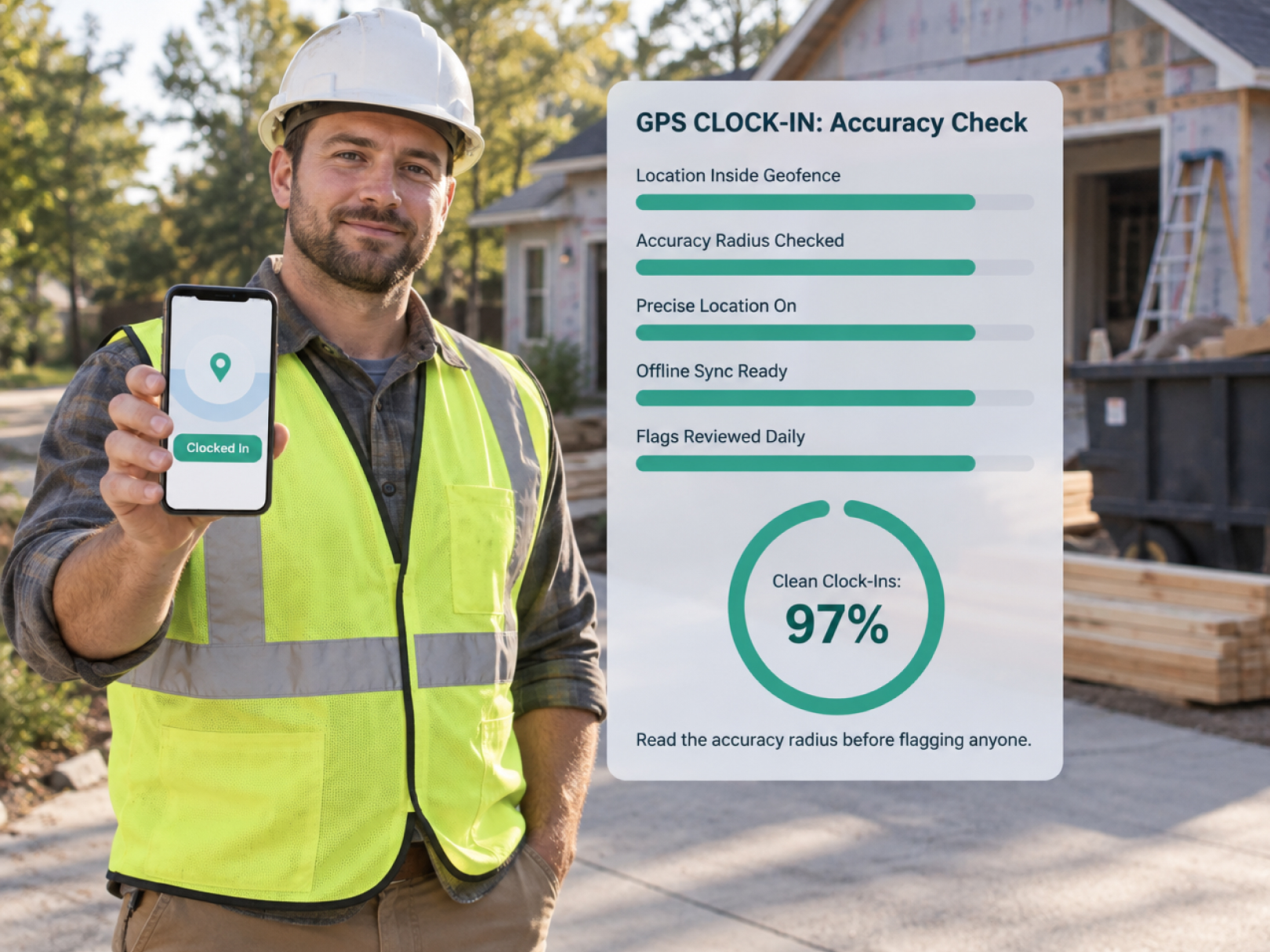
 A GPS timesheet is accurate enough to verify that a worker was at a job site, but not accurate enough to pinpoint which room they were standing in. That distinction is the key to setting it up correctly. Treat GPS as a "was this person at this site" check with a sensible boundary, and it works reliably. Expect it to behave like a surveyor's instrument, and you will spend your week chasing false flags.
This guide covers how phone location accuracy actually works, how to size a geofence for different job types, what to do on sites with weak signal, how to read an accuracy radius, and a correction workflow that keeps payroll clean. It is the technical companion to the broader case for GPS time tracking in construction.
How Phone Location Accuracy Works
A phone estimates its position from several sources, and the quality of that estimate changes from moment to moment. Knowing the sources explains most "the GPS is wrong" complaints.
- Satellite signals (GPS and similar systems). In open sky, consumer phones are typically accurate to within roughly 5 meters (about 16 feet), though results vary by device and conditions.
- Wi-Fi positioning. Nearby Wi-Fi networks help the phone locate itself, especially in dense areas and near buildings.
- Cell tower triangulation. A coarser fallback, accurate to hundreds of feet or more depending on tower density.
- Motion and barometer sensors. These help smooth position changes but do not create accuracy on their own.
Every location reading comes with an accuracy radius, the phone's own estimate of how far off it might be. A reading of "10 meters" means the true position is probably within 10 meters of the reported point. A reading of "150 meters" means the phone does not know where it is very well.
That accuracy radius is the most useful piece of data in a disputed record. Learn to read it, and most arguments settle themselves.
Conditions That Degrade Accuracy
Construction sites combine nearly every condition that weakens a location fix.
|
Condition |
Effect |
|---|---|
|
Open lot, clear sky |
Best accuracy |
|
Tall buildings around the site (urban canyon) |
Signals bounce, positions can drift by dozens of meters |
|
Basements, parking structures, tunnels |
Little or no satellite signal; relies on Wi-Fi or cell |
|
Heavy tree cover |
Reduced signal quality |
|
Metal buildings and steel framing |
Signal blocking and reflection |
|
Inside large concrete structures |
Weak satellite lock indoors |
|
Low battery or power-saving mode |
Some phones reduce location frequency |
|
Location permission set to "approximate" |
Deliberately blurred location |
|
Older or low-end devices |
Less accurate chipsets |
A worker clocking in from a basement mechanical room may produce a coordinate a block away, with a large accuracy radius. That is a signal problem, not a worker problem, and your process should treat it that way.
Sizing a Geofence by Site Type
A geofence should be large enough to absorb normal GPS drift and small enough to still mean something. Too tight and honest workers get flagged. Too loose and the check becomes meaningless.
|
Site type |
Suggested starting geofence |
Notes |
|---|---|---|
|
Single-family home or small remodel |
75 to 150 ft radius |
Include the driveway and any staging area |
|
Small commercial building or tenant space |
Polygon around the building and parking |
Add margin for urban drift |
|
Large commercial or industrial site |
Polygon covering work areas, laydown, and entry |
Use multiple zones if spread out |
|
Multi-building campus |
One zone per building or work zone |
Keeps hours attributed correctly |
|
Linear project (road, pipeline, utility) |
Corridor polygon or a chain of zones |
Update as the work front moves |
|
Urban downtown site |
Larger buffer than expected |
Expect more drift near tall buildings |
|
Remote or rural site |
Larger radius if signal is weak |
Accuracy may suffer from poor cell coverage |
These are starting points. Test each site before the crew arrives, then adjust based on what the data shows.
Tip: Walk the site perimeter with the app open and check where the dot lands on the map. If the dot jumps around near the edges, widen the boundary or add margin.
Test Every Geofence Before Day One
Do a 10-minute test at each site before the first clock-in. Fixing a boundary after the crew has started creates a week of confusing records.
Geofence test checklist:
- [ ] Open the project in the app and confirm the address and boundary are correct
- [ ] Stand at the main entrance and clock in as a test
- [ ] Stand at the far corner of the work area and test again
- [ ] Test inside the building, in the basement or interior core if applicable
- [ ] Test at the staging or laydown area if it is separate
- [ ] Check the accuracy radius on each test reading
- [ ] Adjust the boundary if any legitimate work location falls outside
- [ ] Delete or void the test records so they do not hit payroll
A boundary drawn from a satellite image of the wrong address is a common mistake. Confirm the pin location before anything else.
Handling Sites With Weak or No Signal
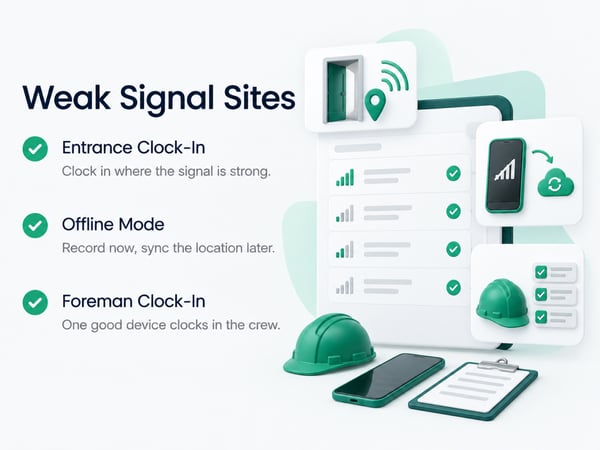
Basements, parking structures, and remote sites need a plan before work starts. Do not rely on luck.
Option 1: Clock in at the entrance. Have workers clock in outside or at the site entry, where signal is better. Their hours start at arrival, which is a fair rule for most crews.
Option 2: Use offline mode. A good app records the clock-in locally with a timestamp, then syncs and attaches location when connectivity returns. Confirm your platform does this by testing in airplane mode.
Option 3: Foreman clock-in. The foreman clocks in the crew from a device with a good fix at a known location. The record shows who clocked in whom, which keeps it auditable.
Option 4: Site-based device or QR code. A fixed tablet or QR code at the entrance provides a consistent location for the whole crew.
Option 5: Adjust the policy for known dead zones. For a basement build-out, set the geofence around the building and let the supervisor approve in-building records manually, with a note.
Whatever you choose, tell the crew in advance. A worker who expects a flag and knows what to do is not alarmed when it happens. See time tracking for construction workers for crew-level setup.
How to Read a Flagged Record
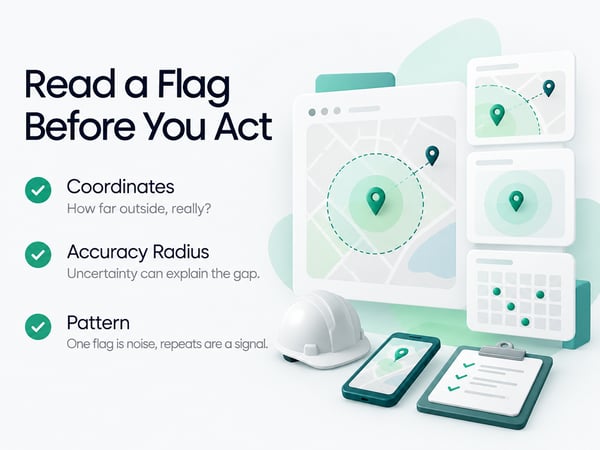
When a clock-in is flagged, check three things before deciding anything: the coordinates, the accuracy radius, and the pattern.
Coordinates. Where did the location land relative to the geofence? Slightly outside the edge is very different from three miles away.
Accuracy radius. If the phone reported 120 meters of uncertainty and landed 60 meters outside the boundary, the worker could easily have been inside. A reading with 5 meters of accuracy, 500 feet outside, is more meaningful.
Pattern. One flag in a month is noise. The same worker flagged every day at the same time deserves a conversation. Several workers flagged at the same site suggests the geofence is wrong.|
What you see |
Likely cause |
Action |
|---|---|---|
|
Barely outside, large accuracy radius |
Normal GPS drift |
Approve with a note |
|
Several workers flagged at the same site |
Geofence drawn wrong or too tight |
Fix the boundary |
|
One worker flagged repeatedly, small accuracy radius, far away |
Possible attendance issue |
Talk to the worker |
|
Clock-in far away with huge accuracy radius |
Weak signal or approximate location setting |
Check device permissions |
|
Clock-in at the right time but wrong job |
Worker chose the wrong project |
Correct the project and coach |
Correction Workflow That Keeps Payroll Clean
Corrections are normal. The goal is a consistent process that creates a clear trail.
- Review flags daily, not at the end of the pay period
- Check the coordinates and accuracy radius before assuming anything
- Talk to the worker or foreman when the record is unclear
- Edit the record with a short note explaining the change
- Approve and lock the record before payroll export
- Fix the root cause if the flag came from a bad geofence or permission setting
Every edit should capture who made it, when, and why. That edit log protects the company and the worker if a pay question comes up later. For how verified time records function as evidence, see construction project delay and construction defect claims.
Set a correction deadline. Corrections submitted by Wednesday noon, for example, get processed before Friday payroll. Records that nobody corrects process as submitted.
Common Device and Permission Problems
Many "GPS errors" are really settings on the phone. Run through these before blaming the system.
- Location permission set to "Never" or "Ask next time." Change it to "While using the app" or "Always," per your platform's guidance.
- Precise location turned off. On iPhones and some Android phones, the app can be granted only approximate location. Turn precise location on.
- Battery saver mode. Some modes limit location updates. Ask crews to disable it during shifts if it causes problems.
- Airplane mode or no data. Offline clock-ins should still record, but confirm with a test.
- Outdated app or operating system. Keep both current.
- VPN or location-spoofing apps. These can distort readings. Address them through policy, since a worker intentionally spoofing location is a conduct issue.
- Shared or old phones. Weak hardware produces weak fixes. Consider a company device for crews that need it.
Include a one-page "if clock-in fails" guide in the crew onboarding packet. Workers who can fix a permission setting themselves do not need to call anyone.
Handling Suspected Location Manipulation
Most flags are honest errors. A small number are not, and it helps to know the signs.
Signs worth investigating:
- Perfectly identical coordinates and accuracy values on repeated clock-ins
- Clock-ins that jump between distant places in impossible time
- A coordinate that sits exactly on the job site center every time, with unusually high accuracy
- A worker whose clock-in location never varies even when the crew moves
Handle these as a conduct issue, not a technology issue. Start with a private conversation, document what you see, and follow your normal disciplinary process. Do not accuse anyone based on one odd reading. Keep supervisors from treating location data as a surveillance tool, since trust matters as much as the record. See how to fire a subcontractor for the documentation approach when performance problems persist, which applies to workers and subs alike.
Connecting Accurate Time to Better Job Costing
Accurate location only matters because it makes the hours trustworthy, and trustworthy hours make job cost reports usable.
When clock-ins are verified and cost codes are chosen at clock-in:
- Labor hours land on the right job and phase automatically
- Payroll exports need little or no re-entry
- Overtime is calculated from real hours
- Job cost reports reflect today's work, not last week's guess
That data feeds estimates and profit reporting. See construction WIP report, contractor profit and loss statement, and how to win construction bids for how verified labor data improves decisions. For payroll cash timing, see construction cash flow management, and for prevailing wage and payment holdbacks on public work, see construction retainage.
For platform setup and comparison, see construction time tracking software and top 5 time tracking apps. If you are replacing another tool, see top 5 BusyBusy alternatives and TaskTag vs. BusyBusy. Mobile and outdoor crews have their own patterns, covered in time tracking for landscapers.
Copy-Ready GPS Troubleshooting Guide for Crews
If the app flags your clock-in or won't let you clock in:
- Make sure you are inside the job site boundary and not in a basement or garage. Step outside or to the entrance and try again.
- Check that location is on for the app, and set to precise location.
- Turn off battery saver mode if it is on.
- Make sure the app is up to date.
- If it still fails, tell your foreman. They can clock you in and flag the record for review.
You will not be disciplined for a GPS error. Tell us right away and we will correct the record the same day.
One-Page Geofence and Accuracy Checklist
Setup
- [ ] Project address verified on the map
- [ ] Geofence sized for the site type, with margin for drift
- [ ] Multiple zones for campuses or spread-out sites
- [ ] Test clock-ins at the entrance, far corner, and interior
- [ ] Test records voided before payroll
Weak signal plan
- [ ] Known dead zones identified
- [ ] Clock-in method chosen: entrance, offline, foreman, or QR
- [ ] Crew told in advance
Daily operations
- [ ] Flags reviewed daily
- [ ] Coordinates, accuracy radius, and pattern checked before deciding
- [ ] Edits logged with a note
- [ ] Records approved before payroll export
Maintenance
- [ ] Geofences adjusted after repeated false flags
- [ ] Device permissions reviewed with the crew
- [ ] Troubleshooting guide in the onboarding packet
Related Resources
TaskTag Features:
- GPS Time Tracking for Construction: geofencing, verified clock-in, and a real-time crew dashboard
- Construction Time Tracking Software: platform overview and setup
- Time Tracking for Construction Workers: crew clock-in guide
- Top 5 Time Tracking Apps: platform comparison
- Top 5 BusyBusy Alternatives: alternatives guide
- TaskTag vs. BusyBusy: feature comparison
- Time Tracking for Landscapers: tracking for mobile crews
Related Blog Posts:
- Construction Project Delay: verified time records as schedule evidence
- Construction Defect Claims: time records in disputes
- Construction WIP Report: job cost data from accurate hours
- Contractor Profit and Loss Statement: labor cost reporting
- How to Win Construction Bids: estimating from real labor data
- Construction Cash Flow Management: payroll and cash timing
- Construction Retainage: payment holdbacks on public work
- How to Fire a Subcontractor: documenting performance problems