
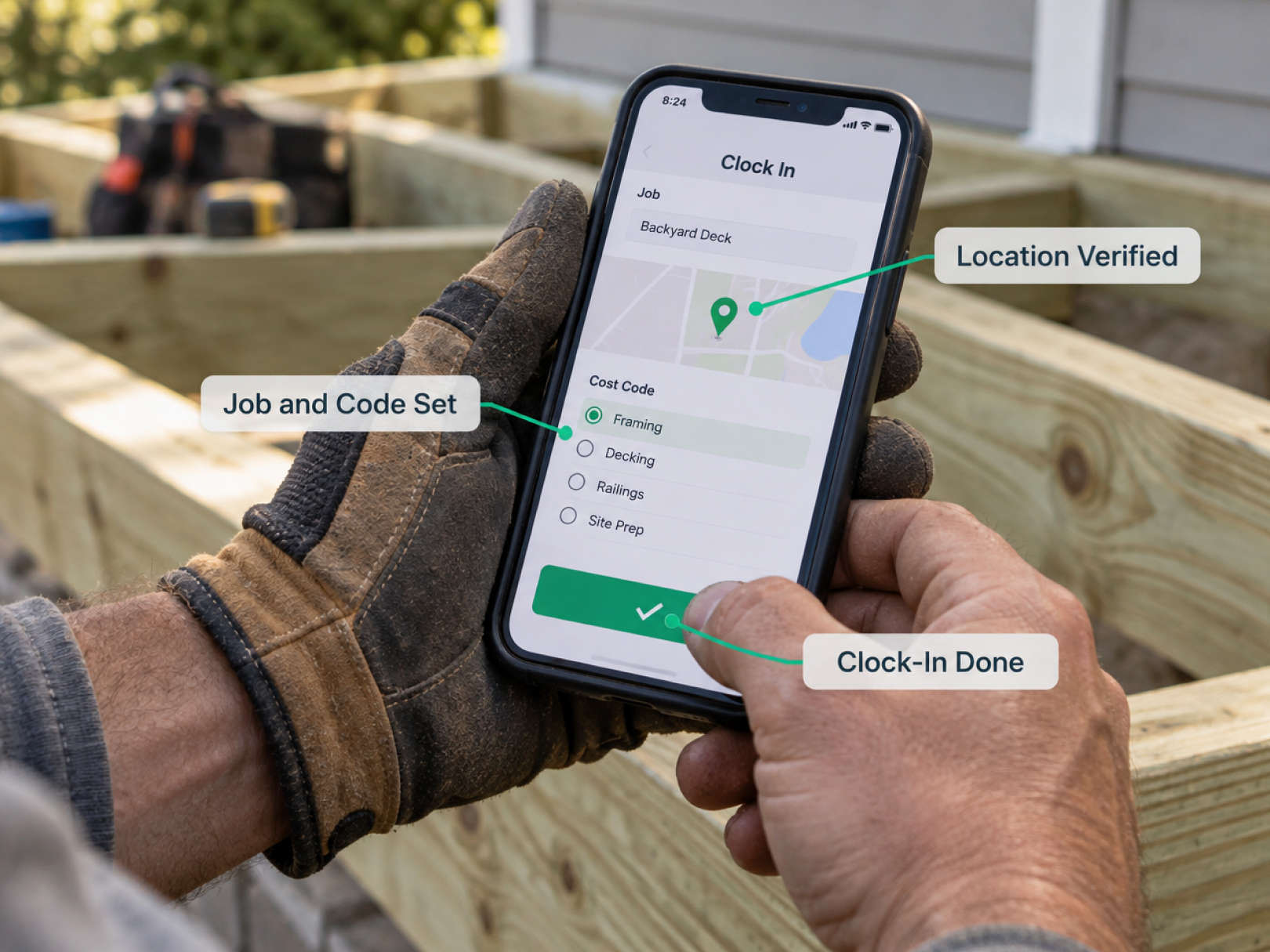
 A five-person crew needs time tracking that sets up in an afternoon, costs less than one payroll mistake, and works on the phones people already own. Most construction time tracking software is designed around 30 to 300 workers, with feature lists, minimum seats, and onboarding steps that suit a mid-size company and burden a small one. A small contractor who buys the same platform ends up paying for features nobody opens and spending a weekend configuring them.
This guide is for owners with fewer than 10 employees who are comparing BusyBusy with other options, or replacing paper for the first time. It covers what a small crew actually needs, what to skip, how to compare pricing honestly, a one-day setup plan, and a short trial script. For a platform shortlist, start with the top 5 BusyBusy alternatives and the side-by-side TaskTag vs. BusyBusy comparison. Confirm current features and pricing with every vendor, including BusyBusy.
What a Small Crew Actually Needs
Most small contractors need six things, and everything else is optional.
- Phone-based clock-in that works for every worker, including those with older phones, plus a way to clock in workers without a smartphone
- GPS verification tied to the job site, so hours are believable
- Hours by job, and by a short list of cost codes where it matters
- Payroll export that works with your system, whether QuickBooks, Gusto, ADP, Paychex, or a payroll service
- Correct overtime calculation for your state
- Fast corrections when someone forgets to clock out
If a platform does these six well, it can run a small company. If it does these poorly and adds 40 other features, it is the wrong tool.
What You Can Usually Skip
Features that matter at 100 employees often get in the way at 5.
|
Feature |
Small crew verdict |
|---|---|
|
Equipment and asset tracking |
Skip unless you own heavy equipment you bill by the hour |
|
Advanced scheduling and dispatch |
Skip, since a text message and a whiteboard may work |
|
Multi-level approvals |
Skip, because the owner approves |
|
Custom dashboards and BI reports |
Skip, since a weekly summary is enough |
|
Certified payroll |
Skip unless you do public prevailing wage work |
|
Deep integrations with large ERPs |
Skip |
|
Dozens of cost code levels |
Skip. Ten codes is plenty |
|
Unlimited custom fields |
Skip |
|
Long implementation programs |
Avoid |
You can add features later if you grow. Buy for the company you are, with a clear path to grow, not for a company you might be in five years.
Pricing Questions That Matter at Small Scale
Per-user pricing looks simple, but small companies get caught by the details.
Ask every vendor, and get the answers in writing:
- Price per user per month, for the plan with the features you need, not the cheapest plan
- Minimum number of users or minimum monthly fee. A minimum of 10 seats costs more than the headline price if you have 5 workers
- Free versus paid users. Do supervisors, office staff, or the owner count as paid seats?
- Annual versus monthly billing. Monthly flexibility is valuable for a small company with seasonal swings
- Contract length and cancellation terms. Can you cancel any month?
- Seasonal or part-time workers. Do you pay for workers you pause in winter?
- Setup and onboarding fees
- Add-ons. Payroll integration, GPS, or photos can be extra
- Price changes at renewal. What will year two cost?
- Data export if you cancel. Can you take your records with you?
Total cost sheet for your crew
|
Item |
Vendor A |
Vendor B |
Vendor C |
|---|---|---|---|
|
Plan name and features included |
|||
|
Price per user |
|||
|
Users you will pay for |
|||
|
Minimum fee, if any |
|||
|
Add-ons you need |
|||
|
Setup fee |
|||
|
Monthly total |
|||
|
Year one total |
|||
|
Cancellation terms |
Compare the real monthly total, not the starting price.
What Time Tracking Is Worth to a Small Company
Do the math for your own crew. The software has to beat the cost of paper.
Estimate current losses:
- Payroll admin time: hours per week collecting, deciphering, and entering time cards × your hourly value
- Rounding and guessing: paying an extra 15 minutes per worker per day on paper
- Buddy punching or late starts: hard to see on paper, easy to see with GPS
- Missed billable time: hours that never make it onto an invoice
- Job cost blind spots: underbidding because you do not know actual labor hours
- Dispute risk: no record when a worker or customer questions hours
Example (illustrative): 6 workers, 15 minutes of rounded-up time per worker per day, $30 per hour. That is 6 × 0.25 × $30 = $45 per day, or about $11,000 per year over 250 working days. Add 3 hours per week of payroll admin at $40 per hour, about $6,200 per year. The software cost, often a few hundred dollars a month, is a fraction.
Your numbers will differ. Fill in your own, and be conservative.
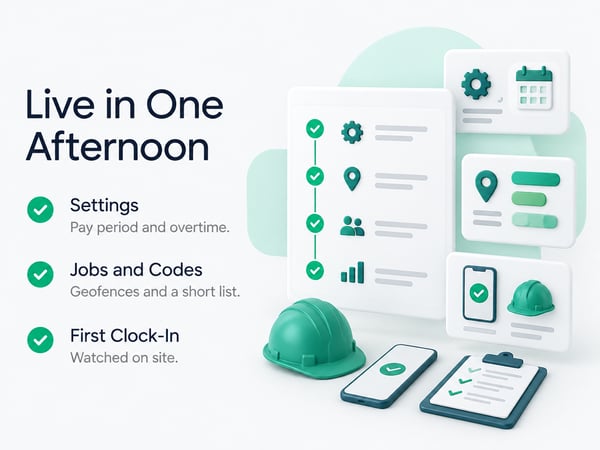
Setup in One Afternoon
A small crew should be live within a day. If a vendor says you need weeks, ask why.
Hour 1: Account and company settings
- [ ] Create the account without vendor help
- [ ] Set pay period, overtime rules for your state, and time zone
- [ ] Choose your payroll integration or export format
Hour 2: Jobs and codes
- [ ] Create each active job with its real address
- [ ] Draw or confirm the geofence for each site
- [ ] Load a short cost code list, around 6 to 10 codes that match how you bid
Hour 3: People
- [ ] Add each worker with the name and ID matching payroll
- [ ] Set pay rates and overtime classification
- [ ] Send login invitations by text
Hour 4: First clock-in
- [ ] Watch each worker install the app and clock in
- [ ] Confirm location permission is turned on
- [ ] Clock in and out yourself to test
- [ ] Set up foreman clock-in for any worker without a smartphone
See construction time tracking software for a deeper setup walkthrough, and time tracking for construction workers for crew-level instructions to share.
Short Cost Code Lists That Work
Keep the list small, and let it grow only when you need the detail.
Remodeler (example): Demo, framing, MEP rough-in, drywall, finishes, trim and punch, change orders, travel, shop time
Roofer (example): Tear-off, decking, underlayment, install, flashing and details, cleanup, change orders, callbacks, travel
Landscaper (example): Maintenance, install, irrigation, hardscape, cleanup, travel, shop time
Handyman or service company (example): Service call, install, estimate, travel, shop time, callbacks
A short list means workers pick the right code without thinking, and your reports stay readable. Always include travel and shop time codes. See our guide on drive time and mileage for how to handle them.
GPS and Privacy for a Small Team
On a small team, trust matters more than anywhere. Explain what the tracking does before the first clock-in.
- Tell the crew that location is recorded at clock-in and clock-out only, if that is how your setup works
- Confirm it is not tracking anyone off the clock
- Explain how errors are corrected
- Do not use the data for anything other than time, payroll, and job costing
On a crew of five, people will read your tone as much as your policy. A short conversation, and a handout, goes a long way. See GPS time tracking for how location verification and corrections work, and use the crew announcement approach from our worker privacy guidance.
Payroll and Overtime for the Small Owner

If you run payroll yourself or through a small service, the export is the part that decides whether the tool saves time.
Test with your real payroll setup:
- [ ] Export a week of hours and import it into payroll as a test
- [ ] Confirm names and IDs match
- [ ] Confirm overtime is calculated the way your state requires
- [ ] Confirm you can pay different rates for different jobs or codes, if you do
- [ ] Confirm bonuses, per diem, or piece-rate pay, if any, are handled correctly
If the export does not work with your system, the tool will not save you the time you expect. Do not accept a screenshot in place of a real test. See construction cash flow management for planning around payroll timing, and contractor profit and loss statement for how labor cost shows up in your profit.
Job Costing at Small Scale
You do not need a complex job costing module. You need to know whether a job made money.
A simple routine:
- Enter the labor budget, in hours or dollars, for each job
- Let the system total actual hours by cost code as the crew works
- Check the total weekly while the job runs
- At the end, compare actual to estimated hours and note the difference
- Adjust the next estimate
After 8 to 10 similar jobs, you will know your real production rates. That is worth more than any feature list. See how to win construction bids for using that data in pricing, and construction WIP report for tracking profit while a job is underway.
Choosing Between Platforms: A Small Contractor Scorecard
Score each platform 1 to 5 on what matters. Weights reflect a typical small crew.
|
Category |
Weight |
Platform A |
Platform B |
Platform C |
|---|---|---|---|---|
|
Ease of use for workers |
3x |
|||
|
Setup time and clarity |
2x |
|||
|
GPS reliability and offline mode |
3x |
|||
|
Payroll export for my system |
3x |
|||
|
Overtime handling for my state |
2x |
|||
|
Short cost codes and job costing |
2x |
|||
|
Corrections and approvals |
2x |
|||
|
Support responsiveness |
2x |
|||
|
Total monthly cost |
3x |
|||
|
Contract flexibility |
2x |
|||
|
Weighted total |
Deal-breakers:
- [ ] Exports correctly to my payroll
- [ ] Works offline
- [ ] My crew can use it without constant help
- [ ] Price and terms fit my budget and cash flow
A 7-Day Trial for a Small Crew
You do not need a 14-day program. A focused week with your real crew tells you most of what you need.
|
Day |
What to test |
|---|---|
|
1 |
Set up the account, one job, and the codes. Time yourself |
|
2 |
Add workers, send invites, and watch each install the app |
|
3 |
Run a supervised first clock-in on a real job |
|
4 |
Test a weak-signal area and offline mode |
|
5 |
Review the day, correct a missed clock-out, and check flags |
|
6 |
Export the week and import it into your payroll system as a test |
|
7 |
Gather crew feedback, total the scorecard, and check pricing in writing |
If two platforms are close, run both on separate crews or jobs the second week. For a longer script, see our guidance on testing any BusyBusy alternative in a trial.
When to Stay With BusyBusy
Switching has a cost. Sometimes the right answer is to stay.
Stay if:
- Your crew uses it without trouble
- Payroll exports work with your system
- Pricing fits your budget and terms are flexible
- You are not missing a feature you need
- Support has been responsive
Look at alternatives if:
- Price has risen faster than your use
- You are paying for features you never use
- Payroll export requires manual cleanup
- Setup or changes are harder than they should be
- Workers struggle with the app
- Support is slow
Compare before you decide. The top 5 BusyBusy alternatives guide and the TaskTag vs. BusyBusy page lay out the differences feature by feature. If you are comparing more broadly, see top 5 time tracking apps.
Growing Past 10 Employees
Choose a platform with room to grow, so you do not switch again in two years.
Questions to ask now:
- What happens to my price if I go from 8 to 15 workers?
- Can I add supervisors, office users, and subcontractors?
- Does it support job costing depth, photos, and checklists when I need them?
- Does it handle certified payroll if I bid public work later?
- Can I export all my data at any time?
Growth also brings documentation needs. When you start running multiple crews, photo documentation and checklists protect you. See the field inspection workflow for how checklists and photos work with time tracking. Documentation records help in disputes, too. See construction defect claims and construction project delay.
For outdoor and mobile crews, who often start small, see time tracking for landscapers.
Common Mistakes Small Contractors Make
Buying for features, not fit. A long feature list does not mean the tool suits five people.
Ignoring minimums and add-ons. The headline price is not the bill.
Skipping the payroll test. The export decides whether you save time.
No explanation to the crew. Surprise tracking breeds resistance.
Too many cost codes. Workers guess. Reports become noise.
Running paper and digital in parallel for months. Pick a start date and commit.
Not reviewing the data. The point is better decisions. Look at hours by job every week.
Locking into a long contract too early. Start monthly if you can, and commit annually only once you are sure.
One-Page Checklist
Decide
- [ ] I listed the six must-haves and my deal-breakers
- [ ] I know how many users I will pay for
- [ ] I compared total monthly cost, including minimums and add-ons
Test
- [ ] I set up the account myself and timed it
- [ ] My crew clocked in on a real job
- [ ] I tested offline mode and a weak-signal area
- [ ] I exported hours and imported them into payroll
- [ ] I checked overtime for my state
Launch
- [ ] Short cost code list loaded
- [ ] Crew briefed on what is recorded
- [ ] Start date set, with paper retired
- [ ] First live payroll verified
Review
- [ ] Weekly check of hours by job
- [ ] Monthly check of payroll admin time
- [ ] Production rates updated after each job
- [ ] Annual review of price and fit
Related Resources
Comparison Pages:
- Top 5 BusyBusy Alternatives: platform comparison and rankings
- TaskTag vs. BusyBusy: direct feature comparison
TaskTag Features:
- GPS Time Tracking for Construction: verified clock-in and corrections
- Construction Time Tracking Software: platform overview and setup
- Time Tracking for Construction Workers: crew clock-in guide
- Top 5 Time Tracking Apps: broader platform comparison
- Time Tracking for Landscapers: tracking for small outdoor crews
- Field Inspection Workflow: checklists and photos for growing crews
Related Blog Posts:
- How to Win Construction Bids: pricing from real labor data
- Contractor Profit and Loss Statement: labor cost in profit reporting
- Construction WIP Report: job profitability
- Construction Cash Flow Management: payroll timing
- Construction Defect Claims: documentation in disputes
- Construction Project Delay: verified time records
- How to Negotiate a Construction Contract: change order and payment terms